


Media control/script blocks
Even an automated, centralized system must be understandable and operable for many people during processing. NeuroomNet offers various options for this.
Create automatisms in the building control system
Every building is different and every media technology is used individually.
Therefore, you can very easily define sequences in the NeuroomNet “Script Blocks” and thus create your personal media control.
Here we are in the brain of NeuroomNet — everything can be linked to everything!

Do I need to learn a new scripting language for this? No!
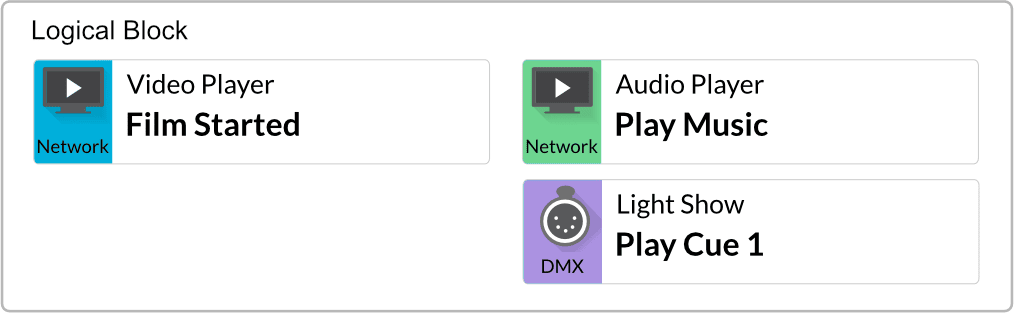
When we talk about script blocks in NeuroomNet, we don’t mean classic code. Users can see visually which events lead to which actions. Underneath is a scripting language, but it is only used to import and export the blocks.
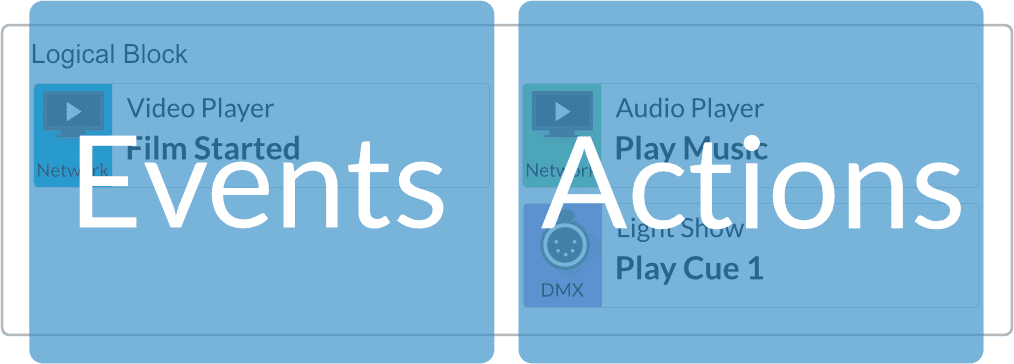
Events
can be, for example, a time, pressing a button on the tablet, or exceeding a threshold value. NeuroomNet listens to these events. They are used as triggers.
Actions
are, for example, switching on a PC, changing a light scene, or starting a video playlist. NeuroomNet controls devices via it. They are the reaction to a trigger.
You can combine and chain events and actions as you like!
Endless possibilities for the automation of your media technology
In this way, for example, an announcement can be started every day at a certain time (event), a lighting scene can be called up at the click of a button, or media sources can be switched.
This opens up countless possibilities without having to learn a programming language or become familiar with the protocols of the end devices!
Graphical editor to build logic
To generate complex behavior in NeuroomNet, you don’t need to know any programming language. NeuroomNet has a visual code editor.

Designed for digital media and building management
Thanks to its numerous interfaces and supported protocols, Neuroomnet can communicate directly with the end devices. Freely definable names and icons always help to keep the overview.
Simple operation with drag & drop
The order of what is to be executed and when can be set quite simply by dragging and dropping.
Likewise, adding new actions works via drag and drop.
Copying, commenting, deleting, renaming, etc. works just as quickly and easily.
Address individual components, groups, or entire buildings
No matter whether a single device, a workstation, an exhibit, a room, a floor, or an entire building is to be addressed, in the NeuroomNet script blocks this can be graphically compiled with one line.

Start single component

Turn off all computers in the building

Start all computers on the floor
“Event -> Action” as an intuitive concept
It is that simple. When an event occurs, something is supposed to happen (action).
Events can be all sorts of things:
- A key is pressed
- A temperature is exceeded
- A video is over
- One device fails
- A date or time is reached
etc.
In the same way, there are countless actions:
- Play the video
- Dim the light to 50%
- Restart the computer
- Turn everything off
Conditional executions (IF blocks)
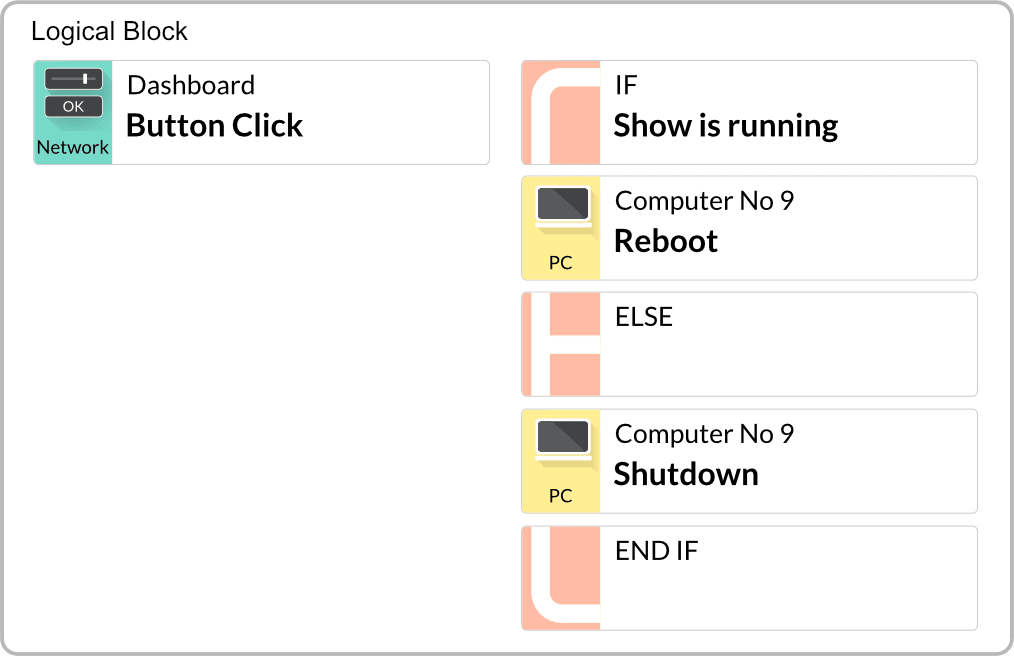
Of course, you also have to be able to formulate conditions — “Switch only if there is no presentation running at the moment”.
NeuroomNet script blocks offer simple AND powerful options for this as well.
Simple processing of values in variables
In the context of building and media control, you work a lot with values (numbers and texts) that you want to store, read out and evaluate. These values are stored in variables in NeuroomNet. The variables can be used globally and everything flows together in the script blocks.
For example, the numerical value of a CO2 sensor can be evaluated to take measures in the ventilation or passed on to a dashboard to be visualized there as a display.
Configure instead of program
Many tasks are simply configured instead of programmed. You don’t have to type in lines of code, just fill in clearly labeled form fields.
All functions are available via the graphical user interface.
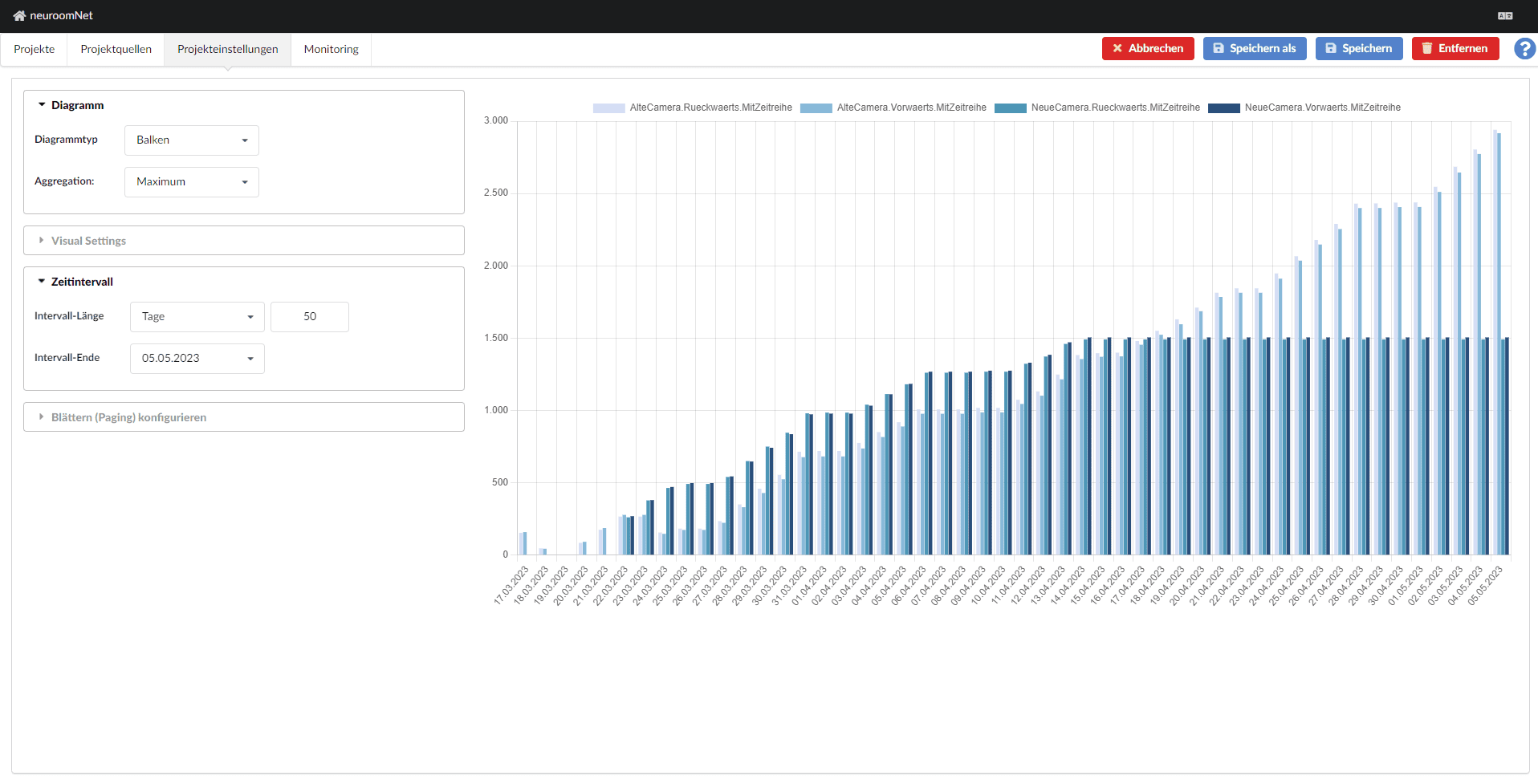
For example, if you want a variable to save its last value in a list every time you change it, you can do that with a few clicks in the variable dialog. With this list of stored values, you can later create statistics about the history, whether you want to record and evaluate the temperature history of a room or the number of people in a room over the day.
For such tasks, you don’t need a single script in Neuroomnet.
For more examples and explanations take a look at our documentation.